Screen Reader Testing: How to Test Your Website (2026)

Sidharth Nayyar
TL;DR: To run a screen reader test, grab a free tool like NVDA (for Windows) or VoiceOver (built into macOS/iOS). Unplug your mouse, turn off your screen, and navigate your site using only your keyboard. Check if you can understand headings, follow links, fill out forms, and interact with images. This hands-on approach is the best way to uncover real-world accessibility issues that automated scans can't catch, ensuring your website is usable for everyone.
Dipping your toes into your first screen reader test is probably the single most eye-opening thing you can do to understand how people with visual impairments actually use your website. This isn't about becoming a master overnight. It's about building empathy and finding the real-world snags that trip people up. The whole point is to hear your website exactly as they do.
Getting Started With Your First Test
Running your first screen reader test takes accessibility out of the realm of abstract checklists and puts it into a real, tangible user experience. It lets you step into their shoes and uncover frustrating roadblocks that automated scans just can't catch.
You need to shift from seeing your website to hearing it. This change in perspective is huge. What looks perfectly clear and intuitive to a sighted user can sound like a garbled, illogical mess when read aloud. A classic example? That cool, minimalist icon button without a proper text label. A screen reader might just announce "button," leaving a user completely in the dark about its function.
Key Tools and the First Steps
The good news is you don't need to shell out a bunch of cash for fancy software. The most common tools are easy to get and give you everything you need to start.
- NVDA (NonVisual Desktop Access): This is a fantastic, free, and open-source screen reader for anyone on Windows. It's incredibly powerful and my go-to recommendation for beginners.
- VoiceOver: If you're on a Mac or any Apple device, you already have this. It's built right into macOS and iOS, so there's nothing to install.
- JAWS (Job Access With Speech): This is the industry-standard paid tool, often used in corporate and government environments. It's powerful, but not necessary for your initial tests.
For your first run, stick with a free option like NVDA or VoiceOver. The process itself is simple. Fire up the screen reader, then turn off your monitor and unplug your mouse. Seriously. Forcing yourself to navigate with only the keyboard is the only way to get an authentic feel for the experience.
At its core, a good screen reader test answers one simple question: Can someone understand what's on the page, get around easily, and accomplish what they came to do without needing to see it? Every dead end you hit or confusing bit of audio you hear is a golden nugget of feedback.
Why Bother with Screen Reader Testing?
Think of screen reader testing as less of a technical chore and more of a direct line to a huge part of your audience. It’s easy to see accessibility as just another box to check, but it’s actually a core part of building a loyal customer base and making sure you’re not leaving money on the table.
On a human level, a site that works well with a screen reader gives people independence. It means they can access information and get things done without having to ask for help. It’s a sign of respect, and users notice.
But what happens when it goes wrong? Imagine someone trying to buy from your store, but their screen reader just says "button" for both the "Add to Cart" and "Checkout" links. Or someone trying to book a flight who gets completely stuck because the calendar widget doesn't work with their keyboard. These aren't just hypotheticals; this stuff happens all the time and it’s frustrating, leading to abandoned carts and lost trust.
It's Just Good Business
When you ignore this part of the user experience, you're basically telling a segment of your customers to go elsewhere. The numbers here are staggering. By 2026, it's estimated that 2.2 billion people will have some form of vision impairment. The global market tied to people with disabilities is valued at an incredible $13 trillion.
Still not convinced? Research shows that 71% of users with disabilities will bounce from a website immediately if they can't use it. That’s a direct hit to your conversion rates and bottom line.
An inaccessible website is the digital equivalent of a shop with a locked front door. No matter how great your products or services are, if a significant portion of your audience can't get in, you're losing their business.
Getting a handle on screen reader testing really starts with understanding the bigger picture of Accessibility in Web Design. It's a non-negotiable for building a stronger brand, reaching more people, and frankly, just doing the right thing.
Choosing the Right Screen Reader for Your Test
Picking the right tool for a screen reader test is your first real step toward understanding how your website actually works for someone with a visual impairment. Your choice will mostly come down to your operating system and what you're trying to achieve, but it’s always best to start with the most popular options to get the widest coverage.
For anyone on a Windows PC, the place to begin is with NVDA (NonVisual Desktop Access). It’s powerful, completely free, and open-source, which has helped it build a massive community of users. Because so many people rely on it every day, making sure your site works well with NVDA is a must for any serious accessibility audit.
If you’re on a Mac, an iPhone, or an iPad, your decision is already made for you: VoiceOver. It comes built right into macOS and iOS, so there’s nothing to install and no cost to worry about. This built-in convenience makes it the default for the entire Apple ecosystem. If your audience uses Apple products, testing with VoiceOver isn't optional.
Considering Premium and Niche Tools
While NVDA and VoiceOver will cover the majority of screen reader users, you can't ignore JAWS (Job Access With Speech). It's a premium, paid tool that dominates in corporate, government, and educational environments. If your website is for B2B customers or needs to meet strict government accessibility standards (like Section 508), you absolutely need to include JAWS in your testing lineup.
Your goal isn't to become an expert in every tool overnight. It's about picking the right one for your primary audience and building a testing process that reflects their real-world experience.
A good, practical approach is to start with the free screen reader that comes with your operating system. Get comfortable with either NVDA or VoiceOver first. Once you have the hang of it, you can start branching out to other screen readers to get an even clearer picture of your site's accessibility.
To help you decide, here’s a quick breakdown of how the big three stack up against each other.
Screen Reader Comparison NVDA vs VoiceOver vs JAWS
| Feature | NVDA | VoiceOver | JAWS |
|---|---|---|---|
| Cost | Free (Open-Source) | Free (Built-in) | Paid (Premium) |
| Primary OS | Windows | macOS, iOS | Windows |
| Best For | General testing, developers, budget-conscious teams | Apple ecosystem testing, mobile accessibility | Corporate, government, and enterprise environments |
| Customization | Highly customizable with add-ons | Limited customization | Extensive customization and scripting |
Ultimately, the "best" tool is the one your users have. Starting with the most common ones ensures you're building a more inclusive experience for the largest possible audience.
How to Conduct a Manual Screen Reader Test
Alright, you've got your tool picked out. Now for the real test. The whole point is to step into the shoes of someone who relies on this technology, so you need to experience your site the way they do. Seriously, unplug your mouse. This forces you to rely entirely on your keyboard and the screen reader's audio feedback.
The moment of truth comes as soon as your homepage loads. What's the very first thing you hear? It should be the page title, which immediately tells a user where they are. If the first thing announced is something random, like an image file name or a piece of code, you've already found your first fixable issue.
This visual can help you choose the right tool for your setup, whether you're on a personal machine or in a specific corporate environment.
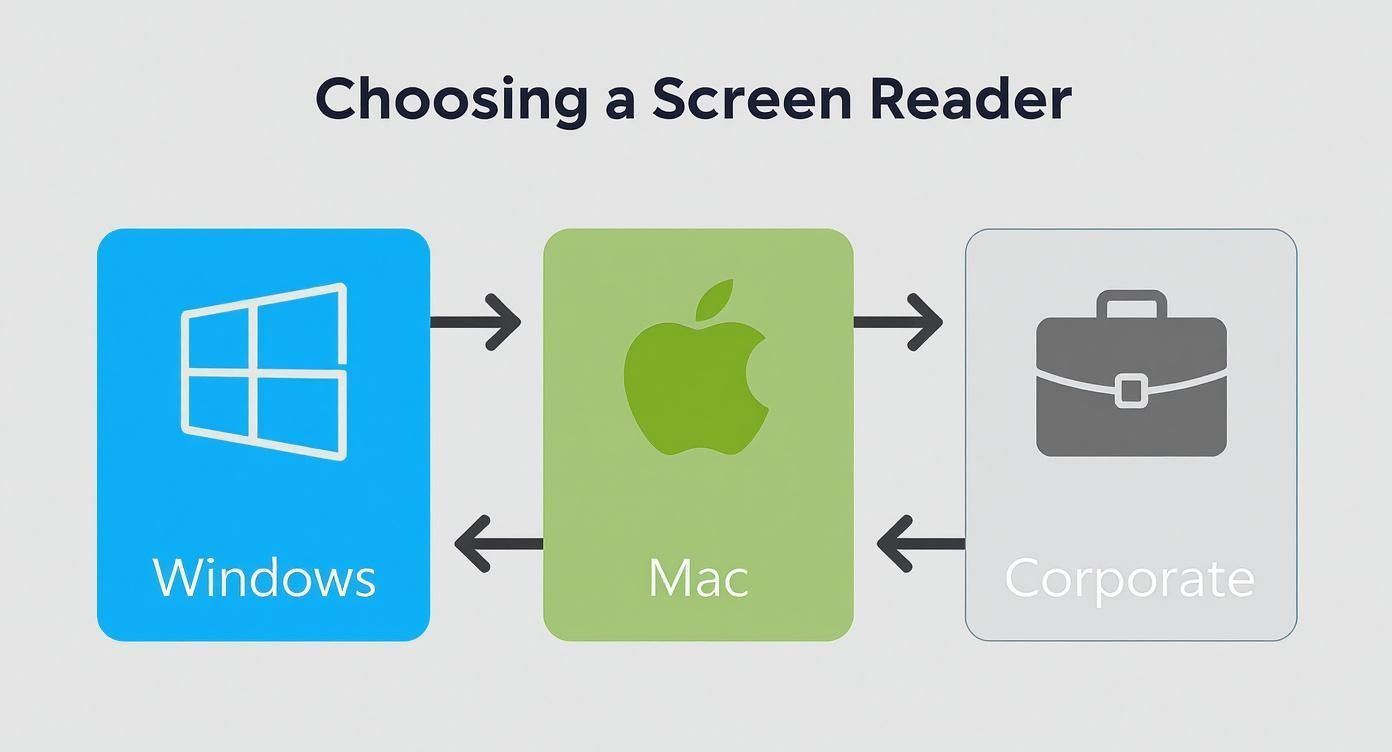
As the chart shows, your operating system is the biggest factor. Most Windows users start with NVDA or JAWS, while Mac users have VoiceOver built right in.
Navigating Key Page Elements
Once the page is loaded and announced, it's time to get a feel for the layout. Sighted users scan headlines to get the gist of a page; screen reader users do the same by jumping between headings. This is one of the most common ways they navigate.
Give it a try with these common shortcuts:
- NVDA/JAWS: Use the
Hkey to move to the next heading andShift+Hto go back. - VoiceOver: Use
Control+Option+Command+Hto cycle through headings.
As you listen, ask yourself: do the headings create a logical outline? If you can't understand the page's purpose just by listening to the headings in order, then the structure needs to be rethought.
Next, see how you move through interactive elements. Use the Tab key to jump from one link or button to the next. Pay close attention to what the screen reader says. A link should be descriptive. "Read our latest blog post on accessibility" is a thousand times better than a vague "Click Here." Likewise, a button should clearly state its action, like "Submit Form" or "Add to Cart."
A successful screen reader test isn't just about finding what's broken. It's about confirming what works, giving you a clear path to an experience that feels intuitive and empowering for every user.
Checking Images and Forms
Images are a classic accessibility hurdle. As your screen reader moves over an image, what do you hear? Any image that conveys important information needs descriptive alt text. On the other hand, purely decorative images should be coded to be ignored, so they don't add unnecessary audio clutter.
Finally, tackle your forms. This is where a lot of sites fall apart for screen reader users. Try to complete a form from start to finish.
- Can you tab through every single field in a logical order?
- Does each field have a clear, audible label?
- Can you actually fill it out and submit it without ever seeing the screen?
Don't forget to test the error states. Intentionally submit the form with incorrect data. A good experience means the screen reader will announce the error clearly and tell you exactly how to fix it.
Focusing on these core tasks—navigating, interacting with links, understanding images, and using forms—will give you a solid foundation and reveal crucial insights into how usable your site truly is. With the global screen reader market valued at USD 1.3 billion in 2023 and projected to hit USD 2.8 billion by 2032, this isn't a niche concern; it's a fundamental part of inclusive design.
Making Sense of Your Test Results
So, you've finished your manual screen reader test. What now? Running the test is one thing, but the real work begins when you start translating those raw notes and observations into actual, meaningful improvements for your website. This is where you shift from identifying problems to creating solutions.
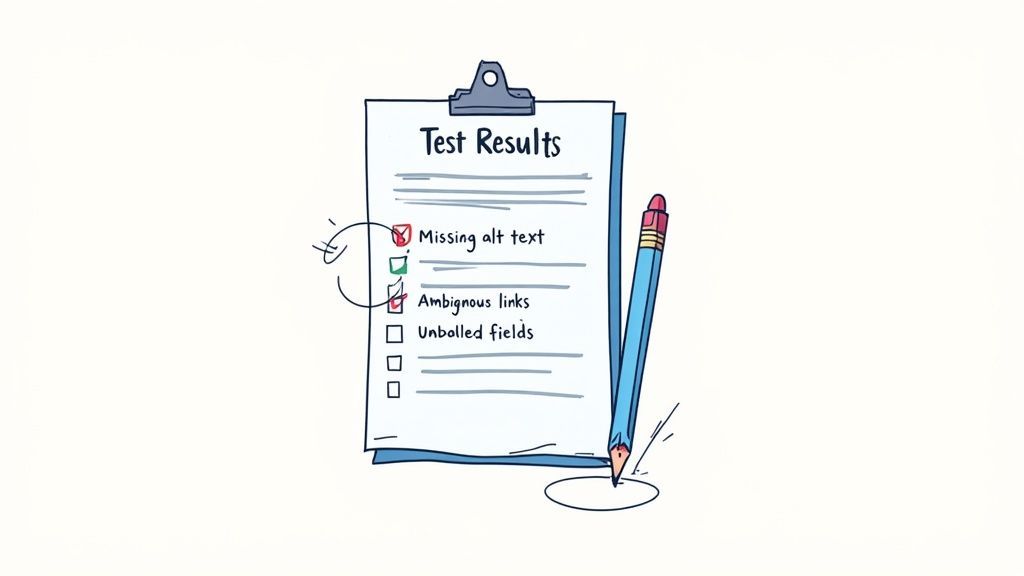
You’ll quickly notice that many of the issues you found fall into a few common buckets. This is completely normal. Remember, manual testing uncovers the real-world usability barriers that automated tools often miss, so don't be surprised by what you find. The goal now is to spot those patterns and figure out where to start.
Identifying Common Accessibility Issues
As you sift through your notes, you’ll likely see some recurring themes. Recognizing these is the first step toward building a solid plan to fix them.
Here are a few of the usual suspects you probably encountered:
- Missing Alt Text: Did the screen reader announce a crucial image as just "image" or, even worse, a long, meaningless filename? That's a classic sign of missing alt text. The fix is to add a short, descriptive phrase that conveys the image's purpose.
- Ambiguous Links: Vague links like "Click Here" or "Read More" are a huge source of confusion. A user navigating by links will hear a list of these with no idea where they go. Instead, make link text descriptive, like "Read more about our quarterly earnings report."
- Unlabeled Form Fields: If the screen reader just says "edit text" when you land on a form field, your users are left completely in the dark. Every input needs a clearly associated label so people know exactly what information to provide.
- Keyboard Traps: This one is a showstopper. A user might tab into a modal window or a widget, but then find they can’t tab out or escape. They're literally trapped, unable to access the rest of the page. This is a critical issue that needs immediate attention.
Think of your test results as a roadmap. Each issue you've logged isn't a failure, but a clear signpost pointing toward a more inclusive and user-friendly experience for everyone visiting your site.
Once you’ve implemented these fixes, it's crucial to document your work and re-test. This iterative cycle of testing, fixing, and re-testing is at the heart of good accessibility practice. As you make these improvements, you can learn more about how to measure the success of your web accessibility efforts to track your progress and demonstrate its impact over time.
Common Questions About Screen Reader Testing
When teams first start dipping their toes into screen reader testing, the same few questions always seem to pop up. Getting these sorted out from the beginning helps everyone get on the same page and builds a solid foundation for making accessibility a natural part of how you work.
A big one is always about timing. How often should we really be doing this? Honestly, the best answer is to weave it right into your development process. It's a must-do before any big launch or redesign, for sure. But it's also smart to run a check-up on your live site—maybe once a quarter—to make sure nothing has broken or slipped through the cracks.
Is One Screen Reader Enough?
Look, testing with a single screen reader is way better than not testing at all. It's a great start. But if you stop there, you're likely to have blind spots. Think of screen readers like web browsers; they can interpret code just a little differently. Something that works flawlessly on NVDA might be a clunky, frustrating experience on VoiceOver.
To get a real sense of how your site performs, you'll want to test with a couple of the most common ones. A solid starting point for most audiences would be:
- NVDA for the Windows crowd
- VoiceOver for macOS and iOS users
Testing with this pair gives you excellent coverage across the two major operating systems and the lion's share of screen reader users.
Manual vs. Automated Testing
People often wonder if an automated scanner can just do this for them. The short answer is a hard no. Don't get me wrong, automated tools are fantastic. They’re your first line of defense and will catch 30-40% of common problems like missing alt text or bad color contrast. You should absolutely use them.
But an automated tool can't tell you if your website is actually usable. It has no idea if the reading order is confusing, if the navigation feels logical, or if the purpose of a button is clear from its context. That's where a real person running a manual test is irreplaceable.
Where Does a Full Accessibility Audit Fit In?
Finally, it's crucial to know how this kind of targeted testing fits into the bigger picture of a full accessibility audit. A screen reader test is a key part of a comprehensive audit, but it's not the whole shebang.
A full audit is a deep dive into your site's compliance with a standard like the Web Content Accessibility Guidelines (WCAG). It covers everything—keyboard navigation for sighted users, color contrast, video captions, the structure of your code, and so much more. Screen reader testing zooms in on one critical aspect of that: the lived experience of someone who navigates the web with assistive technology. It provides insights you just can't get any other way.
Ready to move beyond manual checks and ensure your site is always accessible? WebAbility.io provides an end-to-end platform with automated scanning, real-time monitoring, and an AI-enhanced widget to help you achieve and maintain compliance effortlessly. Explore our solutions today.
Quick Questions
Tap to ask AI about this article