A Practical Guide to the WAVE Accessibility Checker

Sidharth Nayyar
TL;DR: The WAVE Accessibility Checker is a powerful, free tool for instantly finding web accessibility errors on any page. Using the browser extension is the most effective way to test your site. Fixing the errors WAVE finds isn't just about compliance; it’s a direct path to improving user experience for everyone, boosting conversions, and reaching a wider audience. To turn WAVE's insights into business growth, prioritize fixing critical 'Errors' first, then move to 'Alerts'. For comprehensive, site-wide monitoring, an automated platform like WebAbility.io can work alongside WAVE to ensure continuous compliance and provide the data you need to manage accessibility at scale.
Why Digital Accessibility Is a Business Imperative
As an expert in digital accessibility with over a decade of experience helping businesses grow, I’ve seen firsthand that accessibility isn't a cost—it's a powerful driver of business growth. Treating web accessibility as just a legal hurdle is a surefire way to leave money on the table. Instead, you should see it as a strategic advantage.
When you make your website accessible, you’re not just helping a few users; you’re welcoming a massive audience, including the one in four adults in the United States living with some form of disability. An accessible site provides a better experience for every single visitor.
The Business Case for Accessibility
If your site isn't accessible, you're actively turning away customers. It's that simple. An inaccessible product page or a clunky checkout flow creates dead ends, stopping potential buyers cold. Running a quick scan with the WAVE accessibility checker is one of the fastest ways to find these hidden, revenue-blocking barriers.
Consider the economic power you might be ignoring. The global disability community holds $13 trillion in disposable income. My experience shows that a more accessible site is fundamentally a more usable site for every single visitor. Things like clear navigation, readable text, and a logical layout benefit everyone, leading to more time on site and better conversion rates across the board. This commitment to a better user experience builds trust and strengthens your brand.
From Errors to Opportunities
Every error that WAVE flags is an opportunity in disguise. Fixing a "missing alternative text" error, for instance, doesn't just help someone using a screen reader—it also gives your SEO a boost. Correcting a "low contrast" error is crucial for users with low vision, but it also helps someone trying to read your site on their phone in the bright sun.
To truly grasp this, it's important to understand the principles behind good accessibility website design. At its heart, it’s about creating an inclusive and seamless experience. For a deeper look at the fundamentals, our guide on what digital accessibility is is a great place to start. By putting accessibility at the forefront, you’re investing in a better product, a stronger brand, and a healthier bottom line.
Running Your First Scan with the WAVE Checker
Let's get straight to the point: use the free browser extension. While the WAVE accessibility checker website lets you paste in a URL, the extension is where the real power lies. It’s the only way to test password-protected pages, dynamic content, and sites on your local machine—all of which are essential for a thorough, real-world accessibility check.
Getting started with accessibility testing might seem daunting, but WAVE makes that first scan incredibly simple. You have two paths: the one-off site scan or the integrated browser extension. From my experience helping countless teams, knowing which to use and when will save you a ton of time.
The online form on the WAVE accessibility checker website is fine for a quick peek at a public page. Think of it as a spot-check tool. It’s useful for a fast look at a competitor’s homepage, but its limitations are clear.
That’s why the browser extension for Chrome, Firefox, and Edge is the go-to tool for serious testing. I can't recommend installing it enough. It quickly becomes an essential part of your development and auditing toolkit because it can test pages the online scanner simply can't reach.
Using the Browser Extension for Deeper Insights
The extension is your key to testing content behind a login, like a user dashboard or an e-commerce checkout flow. These are often the most complex—and most critical—parts of a user's journey, and they’re completely invisible to the website-based scanner.
Getting it set up is easy. Just grab it from your browser's extension store. Here’s a pro tip I give everyone: pin the extension to your browser's toolbar. Having that WAVE icon visible at all times is a game-changer. It turns accessibility checking into a one-click action you can perform anytime, on any page.
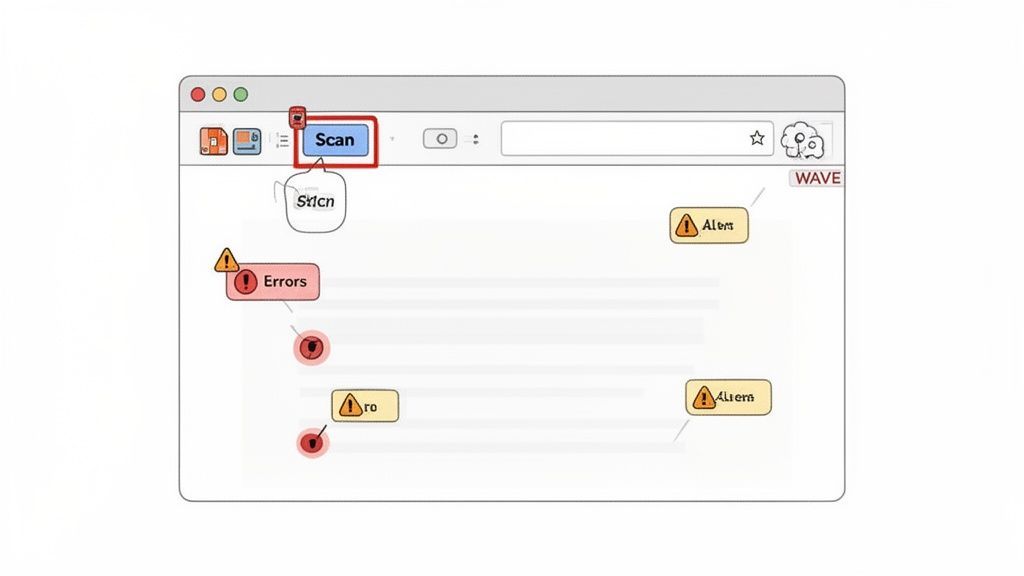
Imagine you've just pushed a new feature live and want to give it a quick accessibility pass. Once the extension is pinned, you just navigate to the page and click the WAVE icon. Instantly, a sidebar pops up on the left, overlaying a full report directly onto your live page.
This is what makes WAVE so brilliant for newcomers and experts alike. It doesn't just give you a list of errors; it visually tags every issue right on the element it belongs to. You see exactly where things are broken in real-time, which is far more intuitive than cross-referencing a separate report with your page's code. This immediate, contextual feedback transforms accessibility from an abstract chore into a set of tangible tasks.
How to Interpret Your WAVE Report
Once you run a scan, the WAVE accessibility checker opens a sidebar on your page. This is your control panel for digging into accessibility issues. While it may seem like a flood of information at first, everything is organized to guide you from a quick overview right down to the specific lines of code that need fixing.
The first thing you’ll see is the Summary tab. This is your 30,000-foot view. It gives you a quick tally of Errors, Contrast Errors, and Alerts. This snapshot immediately tells you how healthy (or unhealthy) the page is.
Decoding Errors and Alerts
With the summary in hand, it’s time to get your hands dirty in the Details tab. This is where WAVE breaks down every single issue it found, neatly grouped by category. Knowing what the different icons mean is the key to prioritizing your work effectively.
Errors (Red Icon): These are clear-cut WCAG failures. When you see a red icon, it’s flagging an unambiguous problem that puts up a serious barrier for users with disabilities. Think of an image missing its alternative text—for a screen reader user, that image might as well not exist. An empty button is another classic error; it’s an element that looks interactive but offers no clue about what it does.
Alerts (Yellow Icon): These are potential issues that need a human eye. WAVE is a powerful tool, but it can't always grasp the context. An alert flags something that might be an accessibility problem, and it's your job to make the final call. For instance, WAVE will often flag a link with generic text like "Read More" as an alert because, out of context, it’s not very descriptive.
My expert advice is to tackle all the red icons first—no exceptions. These are the guaranteed roadblocks on your site. Once those are cleared out, you can move on to the yellow alerts, which require more thoughtful investigation. This approach keeps you from getting bogged down and ensures your time is spent where it matters most to your users.
Moving Beyond the Basics
WAVE gives you more than just a list of errors and alerts; it offers powerful structural insights. The Structure tab is fantastic for checking your page's heading hierarchy (H1, H2, H3, etc.) and landmark regions. A clean, logical heading structure is like a table of contents for someone using a screen reader, letting them jump to the content they need.
Then there's the ARIA tab, which shows you how ARIA (Accessible Rich Internet Applications) attributes are being used. These special attributes are meant to make complex widgets like custom menus, carousels, and pop-up modals accessible. ARIA is powerful, but when implemented incorrectly, it can actually create more problems. This tab is essential for debugging those advanced components. For a deeper dive into your site's specific compliance gaps, a comprehensive wcag compliance checker can provide the detailed analysis you need.
A Practical Framework for Prioritizing Fixes
Running a WAVE scan is easy. The real work is turning that report into an actionable plan that delivers the most impact. Seeing a list of 50+ issues can feel overwhelming, but a strategic approach helps you focus on what really matters to your users and your business goals.
This diagram shows the basic workflow I recommend for interpreting a WAVE report and deciding what to tackle first.
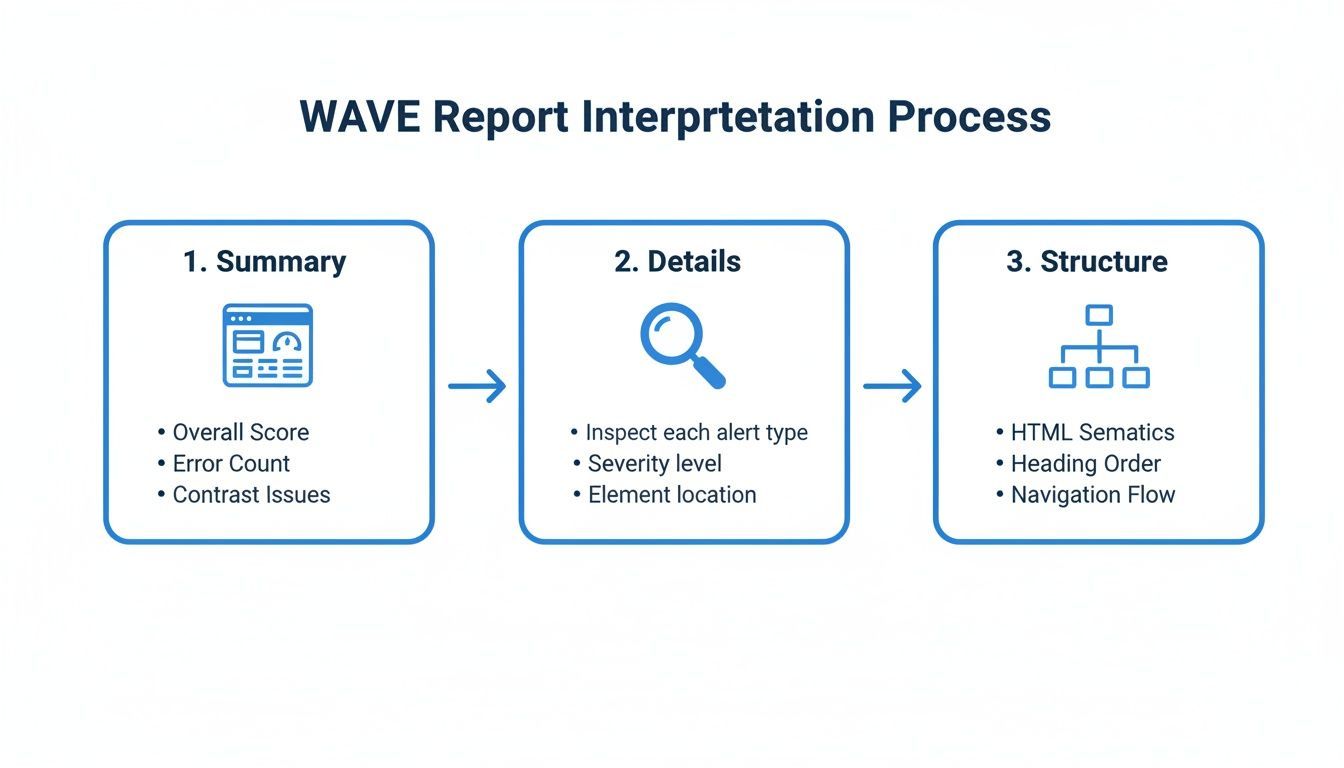
This process—moving from a high-level summary to a detailed inspection—is the foundation for any smart remediation strategy.
Start with Critical Barriers
Always start with the red Errors. These aren't just suggestions; they are confirmed WCAG failures that can completely stop a user in their tracks. Things like missing form labels or empty links aren't just inconveniences—they are dead ends.
Imagine an online store where the "Add to Cart" button is an image without alt text. A screen reader user can't find it, and a sale is lost instantly. By fixing these critical errors first, you deliver the biggest and fastest improvements to the user experience. This mindset directly connects your accessibility work to your business goals. Improving accessibility isn't a separate task from improving conversions; they are two sides of the same coin.
Address Readability and Visuals
After tackling the showstoppers, turn your attention to Contrast Errors. These issues affect a huge portion of your audience, from users with low vision to someone simply trying to view your site on a phone in bright sunlight. If your text is difficult to read, your message is lost.
Next, look at the alerts related to images. A purely decorative image with a missing alt text alert is a low-priority fix. However, an informative image without a proper description can be a significant barrier. Make sure every image that conveys information has meaningful alt text.
Streamline Your Workflow with Code View
Once you've identified an issue to fix, WAVE makes the handoff to your development team incredibly smooth. In the report sidebar, just click the Code icon at the bottom of the screen.
This instantly opens a panel at the bottom of your page and jumps you to the exact line of HTML, with the problematic code highlighted. You can show your developers precisely where the issue is, eliminating guesswork and dramatically speeding up the remediation process. For a complete strategy, however, you'll need a formal process, which you can learn more about in our guide to performing an accessibility audit.
When to Move Beyond a Single Page Scan
The WAVE accessibility checker is an indispensable tool in any accessibility toolkit. It’s perfect for spot-checking a page and getting that instant, visual feedback you need to squash specific bugs. However, a truly effective accessibility strategy sees the forest, not just the individual trees. This is where managed accessibility solutions come in.
Relying solely on manual, page-by-page scans can create blind spots for a growing business. Your website is a dynamic ecosystem of hundreds or even thousands of pages. A one-off manual scan can't provide a complete view of your site's health or track how your accessibility metrics are trending over time. This is where a comprehensive platform like WebAbility.io offers a powerful advantage.
The Value of Continuous Monitoring
The main strength of the WAVE tool is its focused, granular analysis. To complement this, automated platforms offer features that provide scale and oversight:
- Site-wide Scanning: You can point it at your homepage and have it crawl the entire site, finding systemic problems like an inaccessible component in a header that’s causing the same error on every page.
- Historical Reporting: A dedicated platform saves a history of your scans, making it possible to track your team's progress, spot new regressions, and demonstrate accessibility improvements to stakeholders.
- Dynamic State Testing: Advanced solutions can test what happens after a user interacts with the page, like content inside a modal window or an error message that appears after a form submission.
These features don't replace WAVE; they enhance it. WAVE is essential for developers and auditors fixing specific issues. A managed platform provides the high-level governance and continuous monitoring needed for a complete management solution.
The Shift to Scalable Solutions
This is where the entire industry is heading. The accessibility testing market was valued at a massive $610.51 million in 2025 and continues to climb, as shown in the latest industry reports. While free tools provide a great entry point, the real growth is in cloud-based platforms, which points to a clear need for scalable, enterprise-level solutions.
For any business that's serious about digital inclusion and legal compliance, an automated, continuous monitoring platform is the logical next step. These enterprise-grade solutions work around the clock, scanning your entire digital world to give you the comprehensive oversight that manual checks can't match. This approach turns accessibility from a reactive fire drill into a proactive and manageable process.
A dedicated platform like WebAbility.io gives you a single dashboard to monitor your site’s health, spot trends, and generate the reports you need. It provides the scale and data required to maintain compliance, lower your legal risk, and ensure your site is truly welcoming to every user, every day.
Common Questions About the WAVE Tool
Once you start using the WAVE tool regularly, you're bound to have some questions. Let's tackle a few of the most common ones I hear from teams who are just getting started with accessibility testing.
Is the WAVE Accessibility Checker Really Free?
Yes, it is. The WAVE browser extensions and the online checker are powerful community tools from WebAIM, and they don't cost a thing. They are fantastic for manual, page-by-page analysis and are genuinely the best place for most people to start. For larger organizations or websites that need automated site-wide scanning, historical data, and a centralized workflow, paid enterprise platforms offer that additional layer of robust management.
If My Page Has No WAVE Errors, Does That Mean It's Compliant?
This is a great question, and the answer is nuanced. Getting a clean WAVE report with zero errors is a huge win and means you've successfully avoided some of the most common and critical WCAG failures. You should be proud of that.
But a WAVE scan is an essential first-pass filter, not the final word on compliance. Think of it this way: WAVE can tell you if an image is missing alt text, but it can't tell you if the alt text you wrote is actually good or helpful. True compliance always involves manual testing. You still need a human to check things like the keyboard navigation experience, whether the content is presented in a logical order, and the actual quality of your alt text and link descriptions.
How Often Should I Use the WAVE Checker?
The best habit you can build is to run a WAVE accessibility checker scan every single time you publish a new page or make significant changes to an old one. This simple step prevents new accessibility problems from ever making it onto your live site.
For general maintenance, it's a good idea to check your most important pages—like your homepage, contact form, and top product pages—on a regular schedule, maybe once a month. For businesses that need constant assurance, an automated platform that monitors your entire site 24/7 is the ideal solution to catch issues the moment they appear and maintain sitewide compliance.
Ready to move beyond single-page scans and manage accessibility proactively across your entire digital presence? WebAbility.io provides the automated scanning, historical reporting, and enterprise-grade tools you need to maintain compliance and deliver a truly inclusive user experience. Request a demo of WebAbility.io today.
Quick Questions
Tap to ask AI about this article