Loading
Need some help with installing WebAbility?
Find your answers here
How to Install the WebAbility Accessibility Enhancer on GoodBarber
Follow these steps to add the WebAbility Accessibility Enhancer to your GoodBarber PWA and make it accessible for all visitors.
Step-by-Step Installation
- Go to your GoodBarber Dashboard. Log in to your account and navigate to your main dashboard.
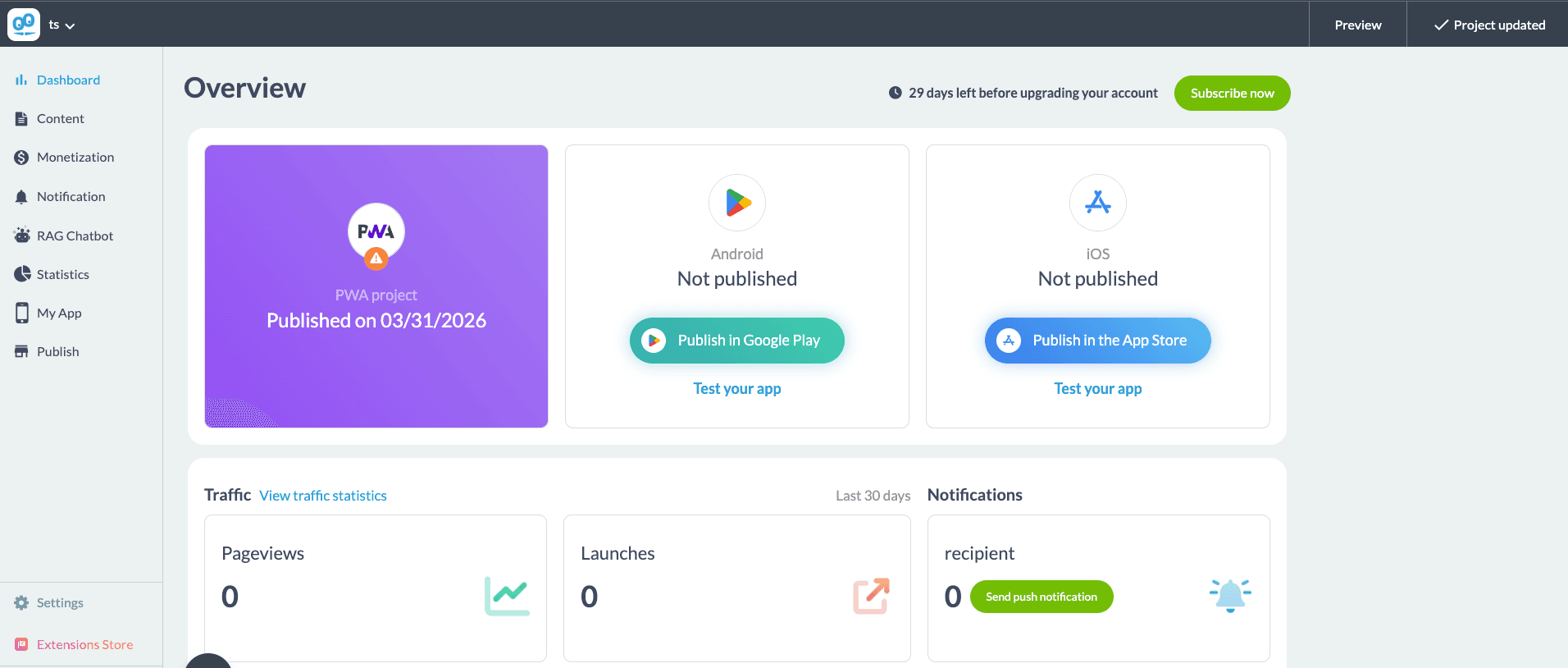
- Go to the Settings tab. In the bottom-left corner of the dashboard, click Settings.
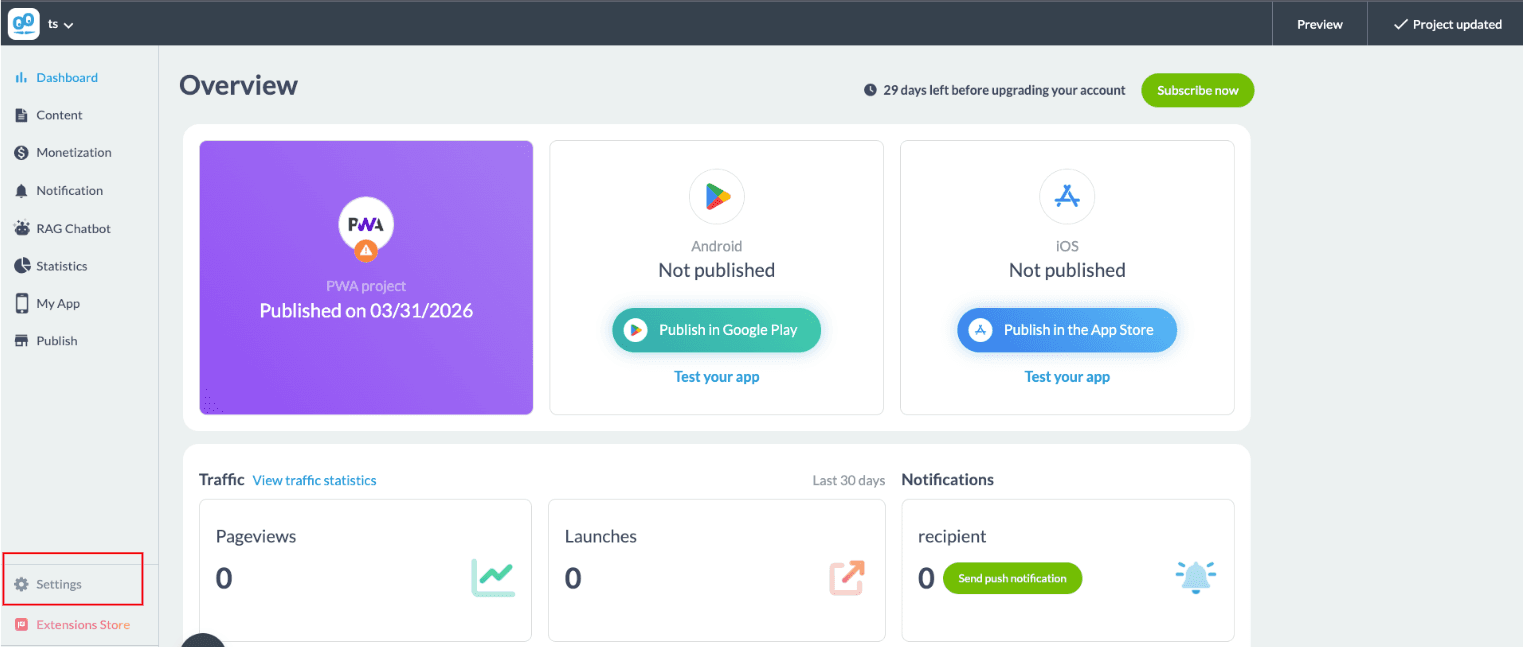
- In the Settings page, scroll to the Other Settings section and select HEAD tag for adding HTML tags in your PWA.
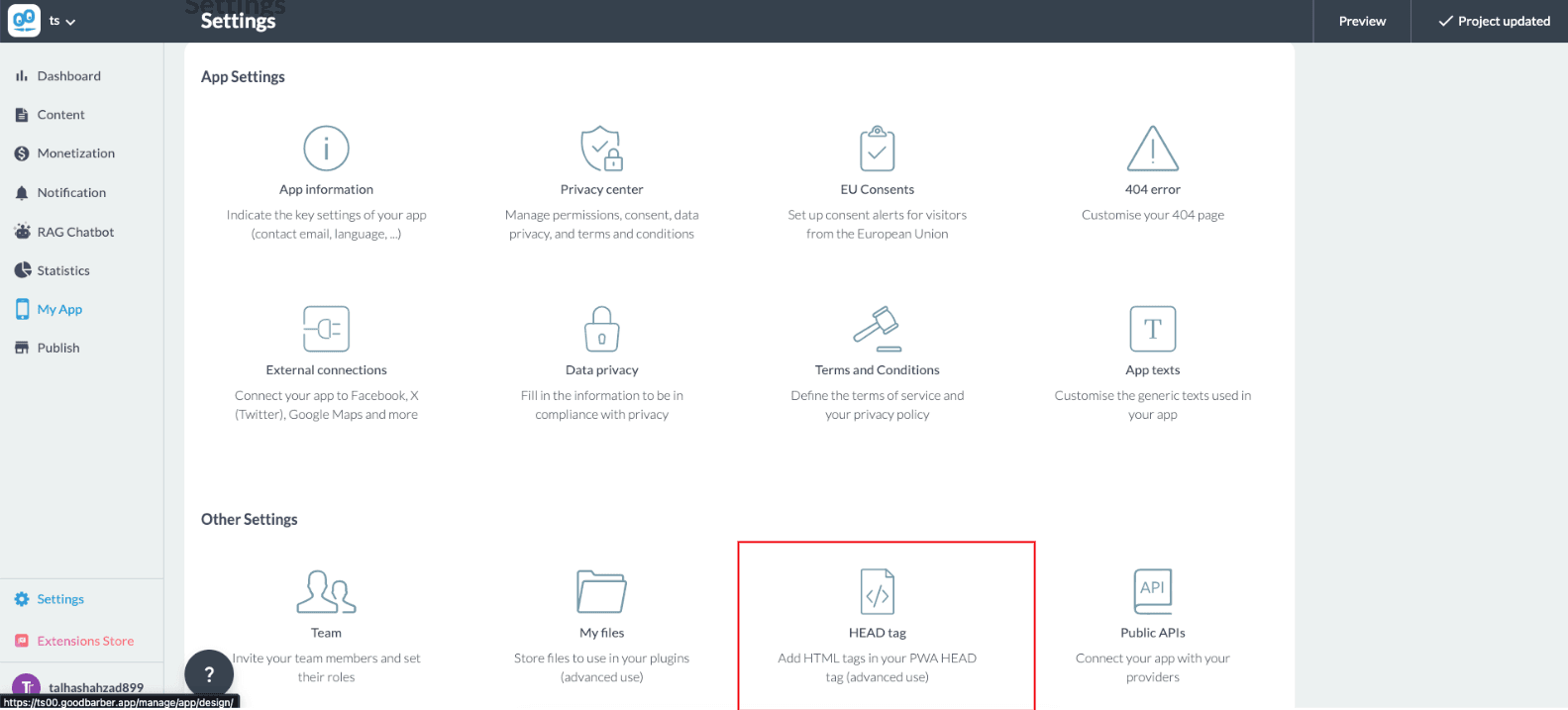
- In the HEAD tag field, paste the following script:
<script src="https://enhancer.webability.io/widget.min.js" data-asw-position="bottom-left-x-20-y-20" data-asw-lang="auto" data-asw-icon-type="m-full" defer></script>This is an example. Copy your own snippet from your WebAbility dashboard: Sites, select your site, Settings tab, Installation. It has your position, language and icon settings.
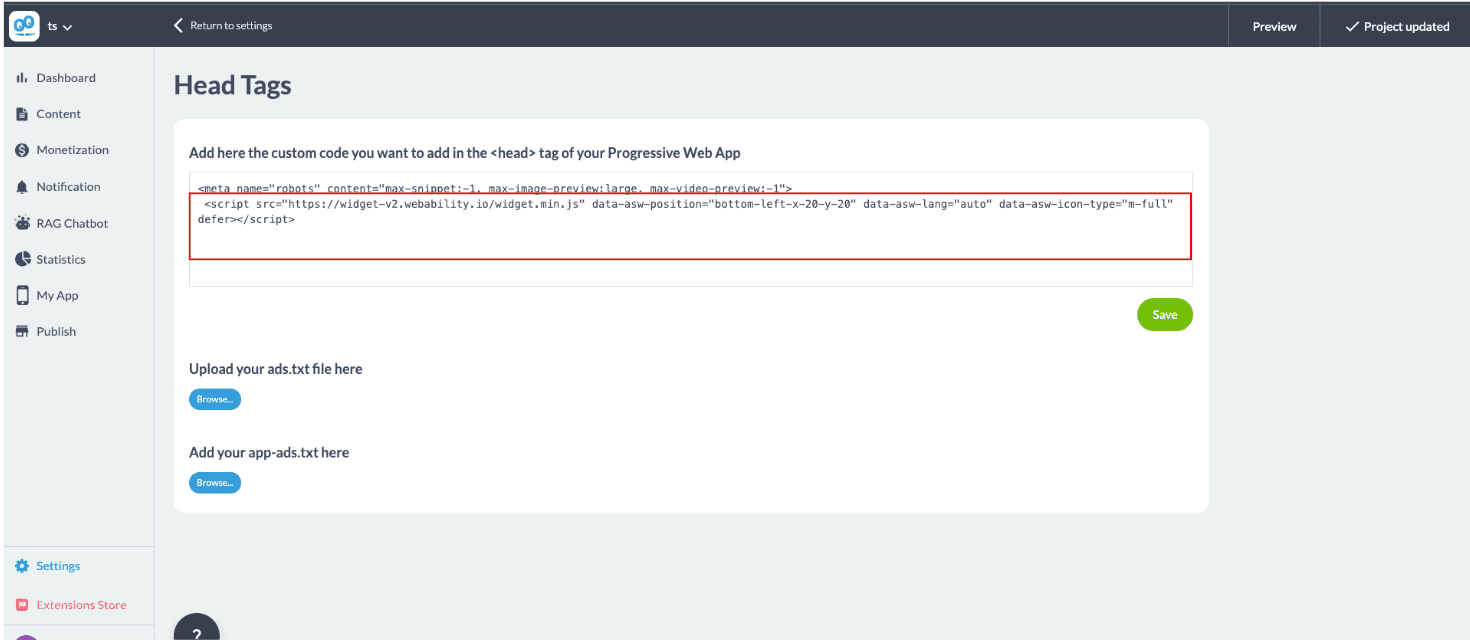
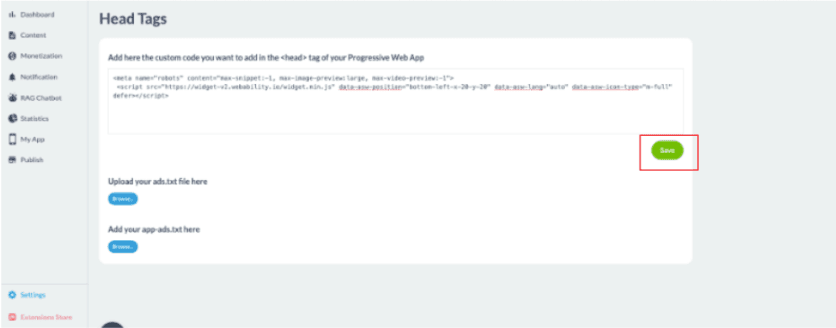
- Save the changes by clicking Save.
- Check the Live Preview to see the WebAbility Accessibility Enhancer in action.
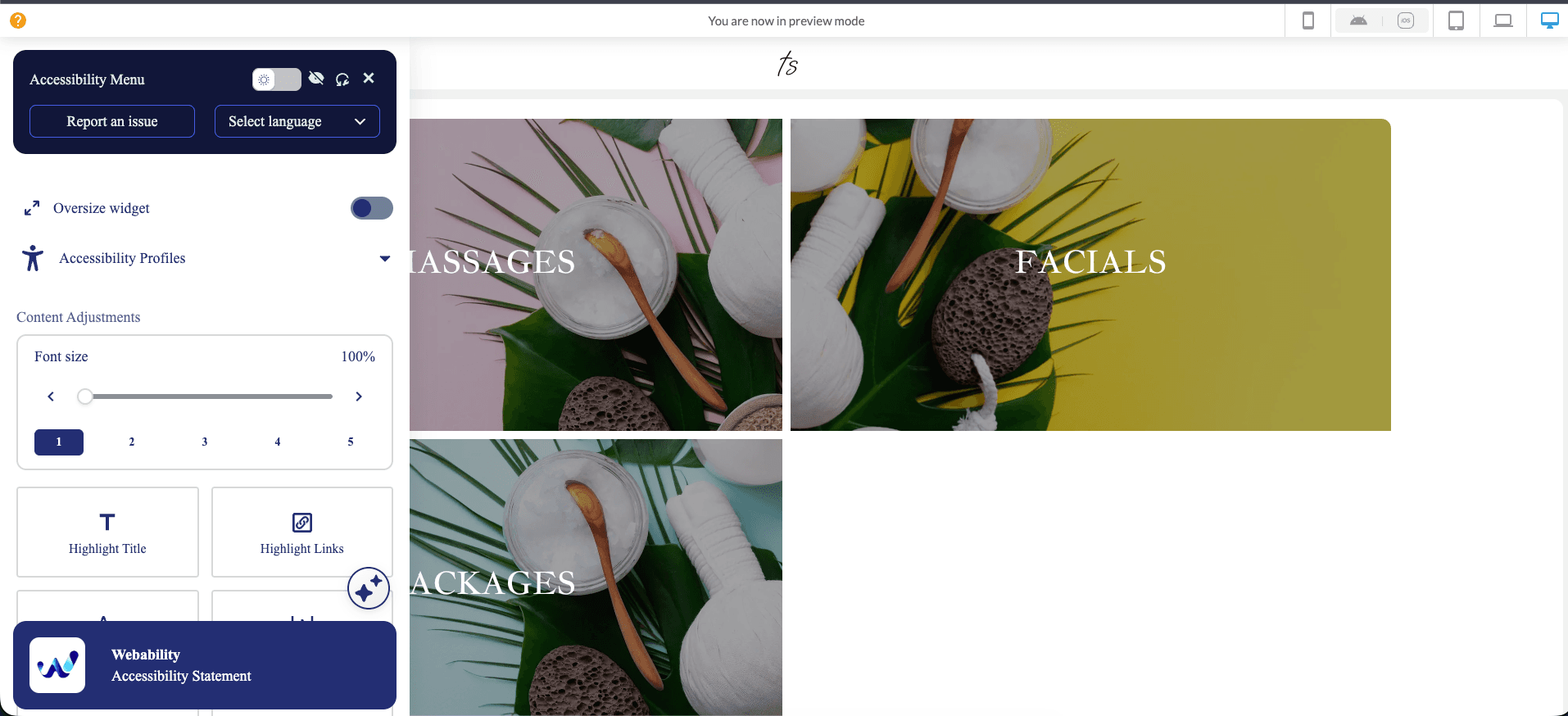
Success! You've successfully installed the WebAbility Accessibility Enhancer, making your GoodBarber app accessible to all visitors.
Note: Whichever installation method you use, make sure to read ourWebsite Onboarding Guideand follow the instructions carefully to get the WebAbility Accessibility Enhancer set up right and running smoothly.